A password manager may sound like a digital drawer where you dump login details and hope never to open it manually. That is certainly part of the job. But modern password managers have quietly evolved into security dashboards, form-filling assistants, passkey wallets, emergency plans and surprisingly useful storage spaces.
If you only use yours to remember the password for a streaming service, you are leaving some of its best tricks untouched. Here is what else may be hiding inside your vault—and how to use those features without putting every important detail of your life into one dangerously convenient basket.
It Can Create Better Passwords Than You Can
The password generator is not the flashiest feature, but it fixes the biggest problem with human-made passwords: humans like patterns.
We reuse familiar words, add predictable numbers and make tiny variations when a website demands a symbol. That produces passwords we can remember, but it also produces passwords that attackers can anticipate.
A generator can create a long, completely random password for every account. You do not need to memorize it, type it or even look at it. The manager creates it, saves it and fills it when needed.
This makes unique passwords practical. If an online shop suffers a breach, the stolen password cannot automatically unlock your email, social media and banking accounts too. That separation is more important than dreaming up one “unbreakable” password and using it everywhere.
NIST recommends using a password manager for accounts that still require passwords. For the one password you do need to remember—your vault’s master password—it recommends prioritizing length and using at least 15 characters.
Many managers can also generate passphrases made from unrelated words. These are useful when you must manually enter a password on another device, such as a television or games console. Random strings are ideal when everything can be autofilled; a long, random passphrase is often less painful when typing is unavoidable.
It Can Give Every Account a Different Username
Reusing one email address everywhere creates a trail. Retailers, newsletters, apps and discussion boards can all connect activity to the same identifier, while a breach reveals which address attackers should target elsewhere.
Some password managers can generate random usernames. Others integrate with email-alias services that create a unique forwarding address for each account. Messages still arrive in your normal inbox, but the website never receives your main address.
This provides several benefits. You can identify which company leaked or shared an address, disable an alias that starts attracting spam and make credential-stuffing attacks less convenient. Even if someone obtains a password from one breach, they may not know the username used on another site.
Aliases are not invisibility cloaks. The forwarding provider may still know where messages go, and an alias does not protect information you willingly give to a service. However, it is a useful layer of separation—and far tidier than maintaining several real inboxes.
It Can Warn You About Trouble You Cannot See
A vault can do more than store credentials. Many managers inspect them for warning signs, including reused passwords, weak passwords and logins associated with known breaches.
That turns an untidy collection of accounts into a practical repair list. Instead of attempting to update hundreds of passwords in one exhausting afternoon, start with the accounts that matter most:
- Your primary email account
- Banking and payment services
- Cloud storage
- Social media
- Mobile-phone and internet providers
- Any account that can reset or unlock another one
Security reports differ between products and subscription levels, so check what your manager actually monitors. A clean-looking dashboard also does not guarantee that an account is safe. A breach may not yet be public, and the manager cannot detect every successful phishing attempt or compromised device.
Still, these reports are excellent at uncovering forgotten problems. For example, 1Password explains that its Watchtower feature can flag reused or weak passwords, compromised websites, unsecured connections and expiring items. Its checks are designed so that complete passwords are not sent to the breach-checking service.
Treat alerts as prompts for action, not decorative red badges. Change the affected credential, sign out other sessions if the website offers that option and review the account’s recovery email, phone number and multifactor authentication settings.
Autofill Can Act as a Phishing Speed Bump
A convincing fake login page is designed to make you stop examining the address bar and start typing. A password manager is less easily impressed by a familiar logo.
Saved credentials are normally associated with a particular website address. If you land on an imitation domain, the manager may refuse to offer the expected login. That moment of confusion—“Why isn’t my password appearing?”—can warn you that something is wrong.
The UK’s National Cyber Security Centre notes that password managers can help spot fake websites, as well as generate unique passwords and synchronize them across devices.
This protection is not absolute. Incorrectly saved website rules, overly broad matching settings or a compromised device can undermine it. You can also defeat the warning yourself by opening the vault, copying the password and pasting it into the fake page.
When autofill unexpectedly fails, do not immediately reach for copy and paste. Check the full domain first. Open the service from a trusted bookmark or its official app rather than following a link in an unexpected message.
It Can Store and Use Passkeys
The strangely named passkey is one of the most important things now appearing in password managers.
A passkey replaces a conventional password with cryptographic credentials. The private component stays with your device or passkey provider, while the website receives a corresponding public component. When signing in, you approve the request using the same kind of method that unlocks your device, such as a fingerprint, face scan or PIN.
Because a passkey is connected to the real website, it is resistant to the kind of phishing that tricks you into entering a password on a lookalike page. It is also unique to that account and cannot be reused elsewhere.
The FIDO Alliance’s passkey guide explains that passkeys can be stored on a phone, computer or hardware security key. Compatible password managers can also save and synchronize them, allowing you to use the same login across different devices.
The experience is not perfectly universal yet. Websites may implement passkeys differently, account-recovery procedures can still rely on weaker methods and moving passkeys between ecosystems is not always as smooth as moving ordinary passwords. Before deleting a conventional login method, make sure you know how the account can be recovered if you lose your devices.
It Can Fill More Than Login Boxes
Repeatedly entering your name, address and payment details is not difficult, but it is exactly the sort of low-level irritation software should handle.
Depending on the product, a vault may store identities containing addresses, phone numbers and email details. It may also hold payment-card information and fill those fields during checkout. This can be particularly handy on mobile devices, where long forms seem specifically designed to test human patience.
Convenience needs boundaries. Saving a card number does not remove the bank’s fraud protections, nor does it guarantee that a shop is trustworthy. Always check the merchant, total price and delivery details before confirming a purchase. Never treat autofill as approval.
You may also be able to create custom fields for information a standard login does not capture: a membership number, customer reference, account PIN or answers required by a particular form.
For security questions, consider generating random answers and saving them in the relevant entry. A question such as “What was your first school?” is effectively another password when it can unlock an account. It does not need a truthful, publicly discoverable answer unless the service specifically requires one for human verification.
It Can Protect Notes and Important Documents
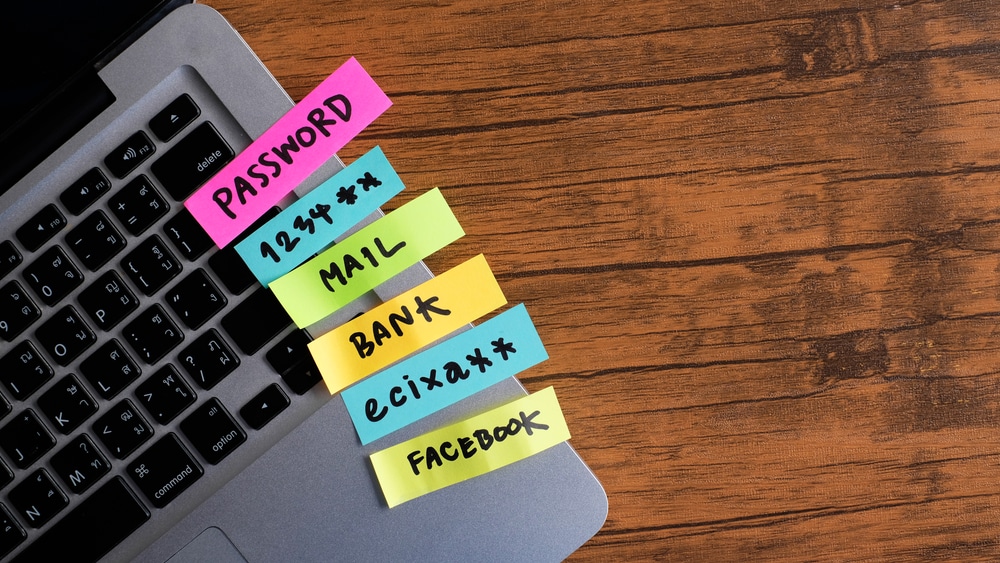
Secure notes are useful for information that belongs neither in a normal notes app nor in an email to yourself.
Possible examples include software licence keys, device recovery codes, alarm instructions and Wi-Fi credentials. Some standalone managers also support file attachments, allowing you to keep a digital copy of an important document beside the relevant account.
That does not mean the vault should become your only archive. Storage allowances may be small, attachments may not appear in every type of backup or export, and losing vault access could leave you without both the login and its recovery information.
Keep independent backups of irreplaceable documents. A password manager is a convenient protected copy, not necessarily a complete backup system.
It Can Generate Your Login Codes
Many password managers can generate time-based one-time passwords: the six-digit codes commonly produced by authenticator apps.
Storing the normal password and its verification code together makes signing in wonderfully easy. The manager can fill the password, copy the current code and sometimes insert it automatically. It also protects you from losing access simply because an old phone containing your authenticator app stops working.
There is a tradeoff. If both factors are in the same vault and an attacker gains full access to that vault, the separation between them largely disappears.
For everyday accounts, the convenience may encourage you to enable multifactor authentication where you otherwise would not. For your primary email, financial accounts and the password manager itself, consider keeping the second factor separate. A hardware security key or passkey can provide stronger separation.
Whatever method you choose, save the recovery codes provided during setup. Keep a protected copy somewhere you can reach even when the vault or your main phone is unavailable.
It Can Share Access Without Exposing Everything Else
Sending a household password through a messaging app creates an unmanaged copy that may remain in chat history indefinitely. Shared vaults and collections offer a cleaner alternative.
You can share selected items—perhaps a streaming login, utility account or home Wi-Fi password—without revealing the rest of your personal vault. When a password changes, everyone with access receives the updated version rather than another message containing the new credential.
This is also useful in small teams, provided the organization approves the manager and sharing setup. Personal and work credentials should not be mixed casually. Employers may have retention, offboarding and auditing requirements that a private family account cannot satisfy.
Review shared access occasionally. Remove former housemates, ex-partners and past colleagues, just as you would collect a physical key.
It Can Become Part of Your Emergency Plan
If you were seriously ill or otherwise unavailable, could someone trusted find the household insurance details, pay an essential bill or manage a digital subscription?
Some managers offer emergency access. You nominate a trusted person, choose what type of access they can request and set a waiting period. If a request arrives, you can reject it; if you do not respond before the waiting period ends, the designated person may receive access according to your settings. Bitwarden’s emergency-access documentation describes both view-only and account-takeover options.
This deserves careful setup. The person must be genuinely trusted, their own account should be strongly protected and they should understand when access is appropriate. The feature may also require a paid plan.
Emergency access is not the same as casually sharing your master password. It creates a defined process, gives you a chance to reject an unexpected request and can be changed later.
The Vault Still Needs Its Own Security Plan
Putting everything in one encrypted vault solves many problems, but it also concentrates value. Password managers are attractive targets, devices can be infected and software can contain vulnerabilities.
Use a long, unique master passphrase that has never protected another account. Enable the strongest available multifactor authentication on the manager itself. Store its recovery code away from the vault, keep apps and browser extensions updated and make sure every device has a screen lock.
Also inspect the export process before you need it. Some exported vault files are unencrypted plain text. If you create one for backup or migration, protect it immediately and delete unnecessary copies afterward.
Finally, choose a product whose security model, recovery options, supported devices and export tools you understand. Browser-based managers can be an easy and perfectly reasonable starting point. Standalone services often add broader cross-platform support, sharing, attachments, security reports and emergency features. The best option is the one you can use consistently without creating lockout traps.
Your Password Manager Is Really a Digital Security Toolkit
A password manager can generate unique credentials, detect weak ones, resist phishing, store passkeys, fill forms, protect recovery codes, share household accounts and give a trusted person controlled emergency access.
You do not need to activate everything at once. Begin with a strong master passphrase and multifactor authentication, replace reused passwords on your most important accounts, then explore passkeys, aliases and security reports. Used thoughtfully, the humble password vault becomes something far more useful: the control panel for your digital life.